
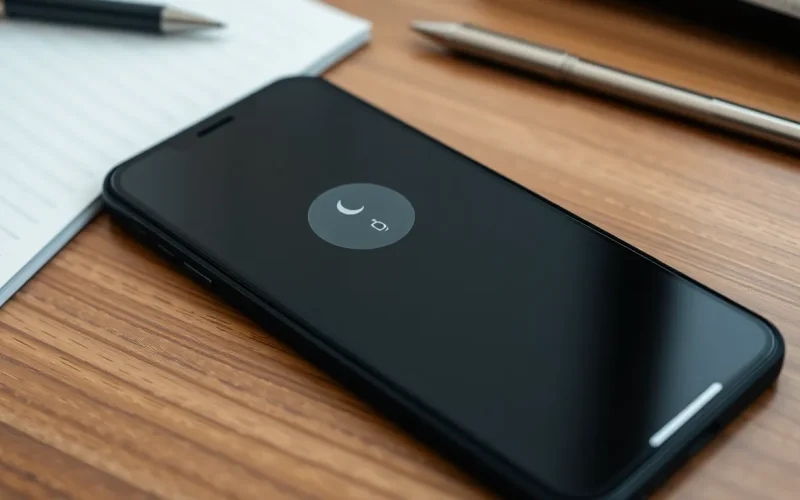
Picture this: you’re waiting for that all-important call, maybe about a job offer or a dinner date, and your iPhone decides to play hard to get. Instead of ringing, it’s as silent as a ninja in a library. Frustrating, right? You’re not alone in this silent struggle, and there’s no need to panic.
Common Reasons Why iPhone Won’t Ring
Several factors can lead to an iPhone not ringing. Identifying the reason can help resolve the issue quickly.
Do Not Disturb Mode
Do Not Disturb mode silences incoming calls and notifications. Many users enable this feature without realizing it. Checking the status is simple: swipe down to access the Control Center and look for the crescent moon icon. If it’s activated, tap the icon to turn it off. Understanding this setting helps prevent missed calls when it’s crucial to be reachable.
Silent Mode
Silent mode prevents the iPhone from ringing during calls. Users often toggle the switch on the side of the device, resulting in silence for alerts. To verify the setting, check the switch above the volume buttons. If the orange part is visible, the iPhone is in silent mode. Turning this switch off allows phone calls to come through audibly.
Volume Settings
Volume settings control the sound level for ringtones and alerts. A low volume can lead to missed calls. To adjust, use the volume buttons on the side of the device or access the Settings app. Navigate to Sounds & Haptics to increase the ringtone volume. Ensuring an adequate volume level ensures important calls are heard.
Software Issues
Software problems often prevent an iPhone from ringing. Many users don’t realize that several software-related factors can contribute to this issue.
Outdated iOS
Running outdated iOS versions can lead to various performance issues, including problems with ringtones. Apple frequently releases updates that address bugs and enhance functionality. Installing the latest iOS version can improve overall performance, including call notifications. Regularly checking for updates through the Settings app ensures users enjoy the latest features and resolves any underlying software glitches.
App Conflicts
App conflicts may disrupt the ringing function on an iPhone. Certain applications might interfere with incoming calls, especially those that manage notifications or sound settings. Users should identify any recently installed apps that could be causing issues. Deleting or disabling these apps temporarily helps determine if they are the culprit. Additionally, keeping all apps updated minimizes the potential for conflicts and ensures compatibility with existing iOS features.
Hardware Problems
Several hardware issues may prevent an iPhone from ringing. Identifying these problems assists in swiftly restoring normal functionality.
Ringer Switch Malfunction
Ringer switch malfunction can stop an iPhone from ringing. The physical toggle, located on the side, may become stuck or fail to engage, leading to silent modes unintentionally. Users should inspect this switch regularly for any signs of wear or debris. If the switch feels loose or unresponsive, visiting an authorized repair center for evaluation is advisable. A malfunctioning ringer switch could easily be the hidden culprit behind missed notifications and calls.
Speaker Damage
Speaker damage directly impacts the ability to hear ringtones. Water exposure, drops, or impact can compromise the speaker’s functionality. Users should test their speaker by playing music or videos. If audio output is muffled or completely absent, it indicates potential damage. Seeking professional repair becomes essential if speaker issues are present, ensuring the iPhone receives proper attention. An intact speaker is crucial for alerting users to incoming calls.
Settings to Check
Various settings can affect the ringtone functionality on an iPhone. Reviewing these settings often leads to solutions.
Notification Settings
Notification settings play a vital role in ensuring calls and alerts reach users. Users can check the Notifications section in the Settings app. Here, they should ensure that Phone notifications are allowed. Toggle the Allow Notifications option to “On.” Additionally, sound settings need verification, especially the Ringtone choice. A selected ringtone must not be set to None or Silent. Ensuring that all notifications for important contacts are enabled can also ensure they don’t miss significant calls.
Emergency Bypass
This feature allows specific contacts to ring through even when the Do Not Disturb mode is active. Users can enable Emergency Bypass for crucial contacts within their contact details. Opening the Contacts app allows users to select a specific contact. Tapping Edit reveals options where they can enable Emergency Bypass for calls and texts. This setting ensures that important calls, such as from family or work, are not overlooked, even during quiet hours. Activating Emergency Bypass means users can stay informed about urgent matters without increasing notification noise.
Experiencing an iPhone that won’t ring can be frustrating but understanding the potential causes can lead to quick solutions. By checking settings such as Do Not Disturb mode and the ringer switch users can often resolve the issue themselves. Keeping the software up to date and monitoring app conflicts are essential steps in maintaining functionality.
For hardware concerns like speaker damage or a malfunctioning ringer switch seeking professional help may be necessary. Users should also explore notification settings to ensure they receive alerts for important calls. With a proactive approach users can enjoy a fully functional iPhone that rings when it matters most.


